How to stream horizontal and vertical at the same time on a Mac
One camera, one take, two live streams: 16:9 for YouTube and Twitch, 9:16 for Shorts and Reels. Here's the setup, the upload speed you need, and the mistakes to avoid.
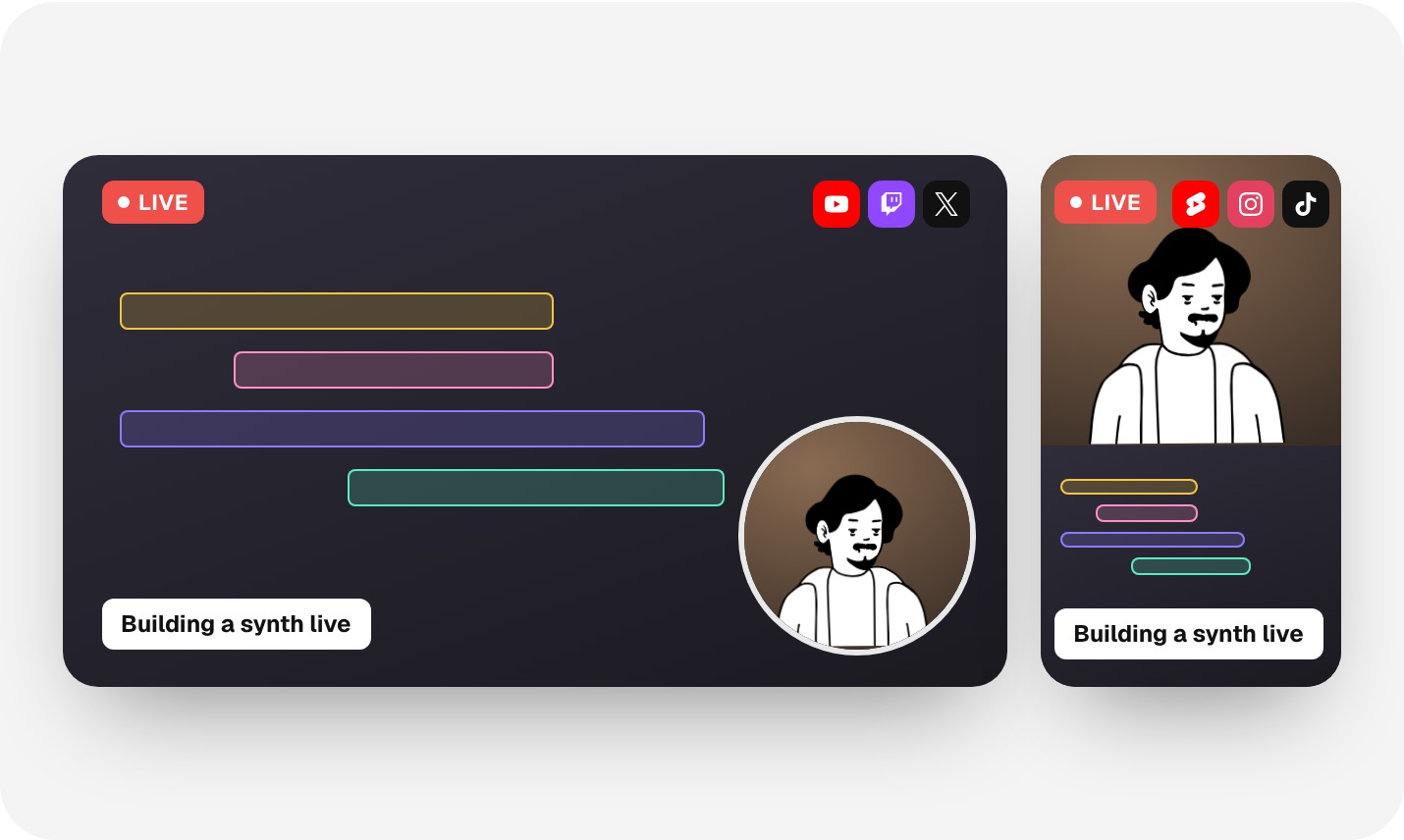
Key takeaways
- Run a second, vertical canvas instead of cropping the wide one, so faces and text are framed for phones.
- Send each canvas to the platforms built for it: 16:9 to YouTube and Twitch, 9:16 to Shorts, Reels and TikTok.
- Two 1080p30 streams need roughly 12–16 Mbps of upload. Check before you go live.
On this page
Why stream wide and tall at once
Your audience is split. Some people watch on a TV or laptop where a 16:9 stream fills the screen. More of them scroll on a phone, where a wide stream turns into a thin strip with black bars. A 9:16 stream fills the phone screen instead, and Shorts and Reels give it a place in the vertical feed.
The usual workaround is two apps, two cameras or a second computer. That doubles the setup and the chances of something breaking. Streaming both from one Mac keeps one camera, one microphone and one set of scenes, and the two outputs stay in sync because they come from the same take.
What you need
Tick these off before your first dual stream:
Set it up in Vidyst, step by step
Turn on the vertical canvas
Open
Vidyst › Settings › Videoand switch on Vertical ("For Shorts, TikTok and Reels"). Pick a resolution and frame rate for each canvas. Your layouts rescale to fit right away.Check both canvases in the studio
Use the Horizontal, Vertical or Both tabs to preview each output. Every layout has a wide and a tall version, so your camera and screen are placed for each shape.

Add your destinations
Connect YouTube with Google sign-in, and add Twitch, Kick or any other service with its server URL and stream key. Point each destination at the canvas it should receive. Basic streams to 2 destinations at once, Creator to 7.

Go live
Press Go live, set the title, who can watch and the category once, and start. The status light tells you if you're live, recording or reconnecting.
How much upload speed you need
Each canvas is its own stream, so your upload has to carry both. Use the calculator to estimate it:
An estimate for H.264 with 25% headroom. Vidyst shows the exact figure for your settings under Stream settings before you go live.
As a rule of thumb, two 1080p streams at 30 fps need about 12–16 Mbps of steady upload. At 60 fps, plan for 20 Mbps or more. If your connection can't carry both, lower the vertical canvas to 720p first: phone screens hide the difference best.
Keep up with chat from every platform
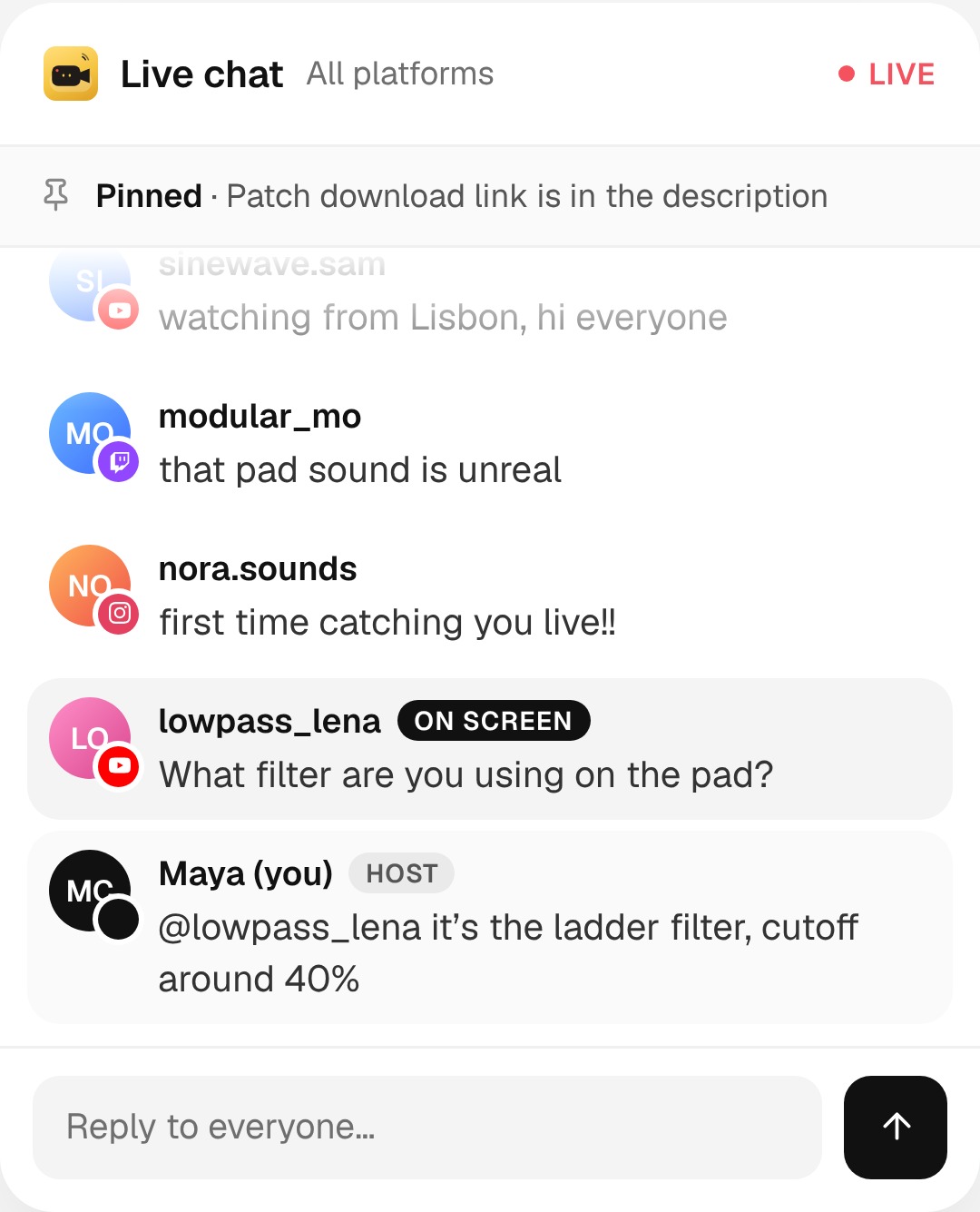
Two streams means two audiences commenting at once. Vidyst merges chat from every destination into one feed, so you can reply to everyone and put the best comments on screen with one click. Your guests get a private backstage chat that viewers never see.
Common mistakes
- Cropping the wide stream to make it tall. Text and faces end up cut off. Use a real vertical layout.
- Forgetting the upload math. Two streams need roughly twice the bandwidth. Run a speed test first.
- Sending the wrong canvas. A 16:9 feed on a vertical platform shows up tiny. Match each destination to its canvas.
Want to see how other Mac apps handle vertical output? Read how Vidyst compares with OBS, Ecamm and StreamYard.
FAQ
Yes. Vidyst runs a 16:9 and a 9:16 canvas side by side from the same camera and scenes, and sends each to its own destinations live.
Vertical-first places like YouTube Shorts and Instagram. Use each platform's stream key, or sign in where Vidyst supports it.
No. One camera feeds both canvases. Every layout has a wide and a tall version, so you're framed for each shape.
Yes. You can record the horizontal canvas, the vertical canvas or both, as MP4, MOV or MKV.
Any Mac with Apple silicon (M1 or later) running macOS 14.2 Sonoma or later.

Co-founder and CEO of Vidyst. Builds streaming tools for creators who go live from a Mac, and streams coding sessions himself.